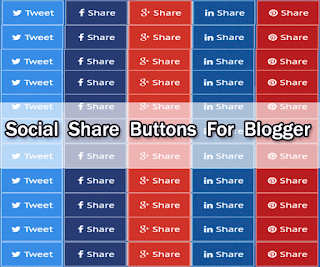
Flat social Share Buttons For Blogger is a nice widget that allows your blog visitors to share your post on their social accounts. If you are looking for a Good social share widget for Blogger then you should try this one. By adding this widget you can show social share button at the end of each post of your Blog. And adding this widget is really easy for those who can edit their templates. Because we can't add this widget from the layout. So follow the below steps for adding this cool social share widget to Your Blogger Blog. You may like: How To Add A Signature To Blogger Post In Just A Few Minutes.
Showing posts with label widgets. Show all posts
Monday, May 1, 2017
Wednesday, April 26, 2017
How To Add PayPal Donate Button On Blogger
Adding PayPal Button really worthy for you if you are working for the charitable organization. You might be seen PayPal Button on many Blogger blogs. And if you wanna know how to make and add PayPal Button on Your Blogger Blog then this is the right place for you. Because in this post I am gonna teach you on how to add Donation Button On your Blogger blog. So let's start by generating a Button from PayPal.
Saturday, April 22, 2017
How to Add Digg Share Button To Blogger Blog
Dig is a popular social networking Bookmarking website. Adding Dig share Button To Your Blogger Blog is really easy. If you wanna add dig share Button to your Blogger Blog or you are looking for Dig Shae Button For Blogger. Then you found it because in this post I am gonna give Dig share Button For You Blogger Blog. So follow the below steps to add this button to your Blogger blog.
How to add Google Buzz Button To Your Blog
Google Buzz is a social network and messaging tool of Google which was introduced on February 9, 2010. We can share photos, videos, status, links on Google Buzz. And you might be seen Google Buzz Button added in some blogs. If you are thinking to add this button to your Blogger Blog but don't know how to add it. Then After reading this post, you will be able to add Google Buzz on Your Blogger Blog. So let's start.
How To Add Flower Falling Effect With Javascript
Flower falling effect is a really nice effect. With this effect, you can display the rain of flowers on any web page. And it really looks nice. If you have seen flower falling effect on any web page and then thought to add it to your Blogger blog. But don't know how to add this beautiful effect on your blog. Then don't worry I am here to teach you.
Recently I have shared a post on How To Add Falling Star Effect On Blogger Blog Maybe you will like to read it also. But this post is not about falling star effect so let's come to the main point which is the flower falling effect.
That's it the flower falling effect is added on your blog. Now visit your blog and see how it looks. If you have done everything correctly then you will see an amazing falling flower effect on your blog.
Thanks for reading my this post and keep visiting for more useful posts. If you have any question about this post feel free to ask me by dropping your comment below.
Recently I have shared a post on How To Add Falling Star Effect On Blogger Blog Maybe you will like to read it also. But this post is not about falling star effect so let's come to the main point which is the flower falling effect.
Add Flower Falling Effect On Blogger Blog
- Go to Blogger.com and log in to your account.
- Select your blog where you wanna add a flower falling effect.
- Now from your blog dashboard click on the layout tab.
- From the next page click on the add Gadget link.
- A new window will appear on your screen from this window select HTML/javascript.
- Now paste the following code into the text box and press the save button.
<script>
if(typeof jQuery=='undefined'){document.write('<'+'script');document.write(' language="javascript"');document.write(' type="text/javascript"');document.write(' src="http://ajax.googleapis.com/ajax/libs/jquery/1.4.2/jquery.min.js">');document.write('</'+'script'+'>')}</script><script>if(!image_urls){var image_urls=Array()}if(!flash_urls){var flash_urls=Array()}image_urls['rain1']="https://blogger.googleusercontent.com/img/b/R29vZ2xl/AVvXsEiZpJ0jWaEfVwVPicP4b-Wv7lCJoA05KTQvAdBv6XCPRTtsY2suVoPh8A0wcSNEW95bSIb-FtKC8f-1fmo9B_Nbhbt9rcVkIzW2QJ-ODrjKi31h2SSxePPUqCTKetYihsi96X4cY0JBPWg/s1600/f1-helponblogging.png";image_urls['rain2']="https://blogger.googleusercontent.com/img/b/R29vZ2xl/AVvXsEiQ4_2yoIUgNSHhSOvloTDHFkH7w0ej5nG2vroE531M8m87qx-SXTNvPWXkRhjQfeMU3qbdf8hOqao9cRyLLl_crB2DIBQ7iRprPTzaPAKBFRuPye0v935Mga1PjMzMkWDNmjy26clwJv0/s1600/f2-helponblogging.png";image_urls['rain3']="https://blogger.googleusercontent.com/img/b/R29vZ2xl/AVvXsEgImqRjtaAq_eQcH7x_o1zlBg7-6tUyxIJNql3mO3-DrPt5Terr7BT8MgSpd6BDT_O8uEwPi9UJtf6chAbHsAhXBlEI7GLBc2j-A2wjWwSis7yd-rzKGYBqICtTTU2I308V9ZjyuKwZW10/s1600/f3-helponblogging.png";image_urls['rain4']="https://blogger.googleusercontent.com/img/b/R29vZ2xl/AVvXsEhMKf8Enep9n2FuJza67FtKirxGgTgjG4XODLNVas7AtmC_4_fJnjsXRWnOT3KCQ4mHwlkGqRhd1xREKzPrxm1Tz7PCXSUzcQTjkWP9l8dQf04AVCJ-NoDcRJ8kYwVjIesFtPEW9oCoxW4/s1600/f4-helponblogging.png";$(document).ready(function(){var c=$(window).width();var
d=$(window).height();var e=function(a,b){return Math.round(a+(Math.random()*(b-a)))};var f=function(a){setTimeout(function(){a.css({left:e(0,c)+'px',top:'-30px',display:'block',opacity:'0.'+e(10,100)}).animate({top:(d-10)+'px'},e(7500,8000),function(){$(this).fadeOut('slow',function(){f(a)})})},e(1,8000))};$('<div></div>').attr('id','rainDiv')
.css({position:'fixed',width:(c-20)+'px',height:'1px',left:'0px',top:'-5px',display:'block'}).appendTo('body');for(var i=1;i<=20;i++){var g=$('<img/>').attr('src',image_urls['rain'+e(1,4)])
.css({position:'absolute',left:e(0,c)+'px',top:'-30px',display:'block',opacity:'0.'+e(10,100),'margin-left':0}).addClass('rainDrop').appendTo('#rainDiv');f(g);g=null};var h=0;var j=0;$(window).resize(function(){c=$(window).width();d=$(window).height()})});</script>
<script>if(typeof jQuery=='undefined'){document.write('<'+'script');document.write(' language="javascript"');document.write(' type="text/javascript"');document.write(' src="http://ajax.googleapis.com/ajax/libs/jquery/1.4.2/jquery.min.js">');document.write('</'+'script'+'>')}</script><script>$(document).ready(function(){var a=$('<img>').attr({'src':'
https://blogger.googleusercontent.com/img/b/R29vZ2xl/AVvXsEiZpJ0jWaEfVwVPicP4b-Wv7lCJoA05KTQvAdBv6XCPRTtsY2suVoPh8A0wcSNEW95bSIb-FtKC8f-1fmo9B_Nbhbt9rcVkIzW2QJ-ODrjKi31h2SSxePPUqCTKetYihsi96X4cY0JBPWg/s1600/f1-helponblogging.png','border':0});</script>
That's it the flower falling effect is added on your blog. Now visit your blog and see how it looks. If you have done everything correctly then you will see an amazing falling flower effect on your blog.
Thanks for reading my this post and keep visiting for more useful posts. If you have any question about this post feel free to ask me by dropping your comment below.
How to Add Falling Star Effect On Blogger Blog
Falling star effect is a beautiful effect. And you might be seen it on some Blogs, Websites. If you have seen and like it and now want to add star falling effect on your Blogger blog.Then you can add this awesome style on your Blog and you just need to follow our below steps. So let's start by avoiding more discussion on This style.
Saturday, April 15, 2017
How To Display Adsense Ads Between All Posts After The First Paragraph
Are you looking for an article on How To insert Ads between all posts? By displaying Ads between all posts you can earn more than you are earning now. If you will show Ads in every post then more people will see your Ads. So if you want to know how to display Ads between all posts in Blogger then this post is especially for you. Because in this post I am gonna teach about displaying Ads after the first paragraph. So let's start.
Tuesday, March 28, 2017
Tuesday, February 28, 2017
Wednesday, February 22, 2017
Top 10 widgets for Blogger blog created with html
We have shared so many cute widgets on this blog. In this post, I am going to give top 10 widgets for blogger. That can make your blogger website more stylish. The gadget I am going to give you are created with HTML. So let start with our cool HTML free search box widget for blogger.
The Facebook static like box widget is stylish Blogger widget. With this widget, we can show Facebook like box into the stylish box. It's a really useful widget for your blogger blog. For adding this useful widget to your Blogger blog visit our post. Facebook static like box widget that appears on mouse hover.
1. The Search box widget for Blogger.
The search box widget is really a useful widget. width this widget you can add a search box to your Blogger blog. And also it is easy to add you can add it without having knowledge of HTML or another programming. To add a search box widget to your Blogger blog visit the following link. 10 stylish advance search box for Blogger Blogspot.2. A Random post widget for Blogger blog.
With the random post widget, you can show your posts randomly. The random post widget is also useful for your Blogger blog. Because if your blog has too many posts. Then this widget can give an idea to your visitor to read a post. For adding the Random post to your Blogger blog visit the following link. How to add an advance random post widget in Blogger blog.3. A mouse cursor changing widget.
The mouse cursor widget can help you to change mouse style of your blogger blog. You can also use a stylish mouse in blogger blog like other websites. We also have shared some mouse styles on our blog. If you want to change mouse style of your blogger blog then visit our post. How to change mouse cursor in your Blogger blog?4. Floating social share buttons for blogger blog.
The floating social share widget is really a stylish social share widget for Blogger. With this widget, you can show floating social share buttons on your blogger blog. And the social button will appear on the left side. For adding this widget open the following link. How to add floating social share buttons on your blogger blog.5. Popup Email subscription box widget for Blogger.
With Popup email subscription box widget you can show subscription box as a popup. The email subscription box widget is really useful for your blog. This widget can help you to get more subscribers. For adding this useful widget to your blogger blog visit our post. Popup email subscription box widget for blogger.6. Related posts widget with a thumbnail.
Related posts widget is a cool widget for blogger blog. With this widget, you can easily show related post at the bottom of the post. For adding a related posts widget at the end of your blog post visit our Post. How to add cool related posts widget with Thumbnail to blogger blog.7. Add snow falling effects on your blogger blog.
The snow falling effects widget is created with JQ. with this useful blogger widget, you can add Beautiful snow falling effects on your blogger blog. Snow falling widget can make your Blogger blog more stylish. And you can also use it in your other websites like WordPress or any other web page. For adding stylish snow falling effects on your blogger blog visit my post. How to add snow falling effects on Blogger blog.8. Lock your Blogger contents with this amazing Blogger widget.
With this amazing blogger widget you can lock you selected content. And the reader can't see the content until he/she will not press the share button. So this is the widget share to unlock for blogger. For adding this cool gadget to your blogger blog visit my post. How to show share to unlock content in blogger blog.
9. Facebook static like box widget for Blogger blog.
The Facebook static like box widget is stylish Blogger widget. With this widget, we can show Facebook like box into the stylish box. It's a really useful widget for your blogger blog. For adding this useful widget to your Blogger blog visit our post. Facebook static like box widget that appears on mouse hover.10. Facebook Popup like box widget for blogger blog.
The Facebook Popup like box widget is the best widget for getting more likes on your facebook page. A reader can see this widget only when he will visit your blog for the first time. For adding facebook popup like box to your blogger visit our post. The Facebook popup like box widget for your website stylish design.Wednesday, February 15, 2017
10 stylish advanced search box for blogger blogspot
The search box is an important part of any Website or Blog. With search box, your blog visitor can easily find the data that he/she want to see. And if you will choose the stylish search box for your blog. It can attract people to search on your blog. In this post, I am going to give 10 stylish Search box for Blogger blog. That can make your blog more stylish. So let's start. Also read this: How to change mouse cursor in your Blogger blog.
1. A simple search box.
2. A simple white search box.
3. A black search box for blogger.
7. Wood style search box.
9. A pink search box.
10. A search bar that increases on mouse hover.
How to add custom search box in Blogger blog.
- Go to the blogger and log in your account.
- Now select your blog where you want to add the custom search box.
- From your blog dashboard click on the layout option.
- Click on the Add Gadget link from a section where you want to show the search box.
- It will open a new window. From this window select the HTML/javascript widget.
- Now a new page will appear. In this page, you will see a text box.
- Enter the following code into the search box. And click on the save button.
1. A simple search box.
<style>
#hob-search
{
padding:10px;
}
#hob-submit
{
border:1px solid #111111;
background: #111111;
padding:5px;
color:#ffffff;
font:14px verdana;
}
#hob-input
{
border:1px solid #dcdcdc;
background:#ffffff;
padding:5px;
color:#888888;
font:14px verdana;
transition: width 2s;
-webkit-transition: width 2s; /* Safari */
-o-transition: width 2s; /* Opera*/
-moz-transition: width 2s; /* firefox*/
width:180px;
}
</style>
<form action='/search/max-results=8' method='get' id="hob-search">
<input name='q' id='hob-input' onblur='if (this.value == "") {this.value = "Search this site...";}' onfocus='if (this.value == "Search this site...") {this.value = ""}' type='text' value='Search this site...'/>
<input id='hob-submit' type='submit' value='Search'/>
</form>
2. A simple white search box.
<style>
#hob-search
{
padding:10px;
}
#hob-submit
{
border:1px solid #111;
background: #fff;
padding:5px;
color:#111;
font:14px verdana;
border-radius:5px;}
#hob-input
{
border:1px solid #333;
background:#ffffff;
padding:5px;
color:#888888;
font:14px verdana;
transition: width 2s;
-webkit-transition: width 2s; /* Safari */
-o-transition: width 2s; /* Opera*/
-moz-transition: width 2s; /* firefox*/
width:180px;
border-radius:5px;}
</style>
<form action='/search/max-results=8' method='get' id="hob-search">
<input name='q' id='hob-input' onblur='if (this.value == "") {this.value = "Search this site...";}' onfocus='if (this.value == "Search this site...") {this.value = ""}' type='text' value='Search this site...'/>
<input id='hob-submit' type='submit' value='Search'/>
</form>
3. A black search box for blogger.
<style>4. Green search Box.
#hob-search
{
background:#333;padding:10px;
width:260px;
border-radius:10px;
-moz-border-radius: 10px;
-khtml-border-radius: 10px;
-webkit-border-radius: 10px;}
#hob-submit
{
border:1px solid #333;
background: #000;
padding:5px;
color:#ffffff;
font:14px verdana;
border-radius:5px;
-moz-border-radius: 5px;
-khtml-border-radius: 5px;
-webkit-border-radius: 5px;}
#hob-input
{
border:1px solid #dcdcdc;
background:#ffffff;
padding:5px;
color:#888888;
font:14px verdana;
transition: width 2s;
-webkit-transition: width 2s; /* Safari */
-o-transition: width 2s; /* Opera*/
-moz-transition: width 2s; /* firefox*/
width:180px;
border-radius:10px;
-moz-border-radius: 10px;
-khtml-border-radius: 10px;
-webkit-border-radius: 10px;}
</style>
<form action='/search/max-results=8' method='get' id="hob-search">
<input name='q' id='hob-input' onblur='if (this.value == "") {this.value = "Search this site...";}' onfocus='if (this.value == "Search this site...") {this.value = ""}' type='text' value='Search this site...'/>
<input id='hob-submit' type='submit' value='Search'/>
</form>
<style>5. A beautiful red search box.
#hob-search
{
background: rgb(143,196,0); /* Old browsers */
background: -moz-linear-gradient(top, rgba(143,196,0,1) 0%, rgba(143,196,0,1) 100%); /* FF3.6+ */
background: -webkit-gradient(linear, left top, left bottom, color-stop(0%,rgba(143,196,0,1)), color-stop(100%,rgba(143,196,0,1))); /* Chrome,Safari4+ */
background: -webkit-linear-gradient(top, rgba(143,196,0,1) 0%,rgba(143,196,0,1) 100%); /* Chrome10+,Safari5.1+ */
background: -o-linear-gradient(top, rgba(143,196,0,1) 0%,rgba(143,196,0,1) 100%); /* Opera 11.10+ */
background: -ms-linear-gradient(top, rgba(143,196,0,1) 0%,rgba(143,196,0,1) 100%); /* IE10+ */
background: linear-gradient(to bottom, rgba(143,196,0,1) 0%,rgba(143,196,0,1) 100%); /* W3C */
filter: progid:DXImageTransform.Microsoft.gradient( startColorstr='#8fc400', endColorstr='#8fc400',GradientType=0 ); /* IE6-9 */
border-radius:10px;
width:260px;
padding:10px;
}
#hob-submit
{
border:1px solid green;
background: green;
padding:5px;
color:#ffffff;
font:14px verdana;
border-radius:5px}
#hob-input
{
-moz-border-radius: 10px;
-khtml-border-radius: 10px;
-webkit-border-radius: 10px;
border:1px solid #ffffff;
background:#ffffff;
padding:5px;
color:#888888;
font:14px verdana;
}
</style>
<form action='/search/max-results=8' method='get' id="hob-search">
<input name='q' id='hob-input' onblur='if (this.value == "") {this.value = "Search this site...";}' onfocus='if (this.value == "Search this site...") {this.value = ""}' type='text' value='Search this site...'/>
<input id='hob-submit' type='submit' value='Search'/>
</form>
<style>6. Stylish black search box.
#hob-search
{
background-image: -moz-linear-gradient( 90deg, rgb( 255, 32, 2 ) 0%, rgb( 251, 138, 132 ) 50%, rgb( 255, 0, 24 ) 100%);
background-image: -webkit-linear-gradient( 90deg, rgb( 255, 32, 2 ) 0%, rgb( 251, 138, 132 ) 50%, rgb( 255, 0, 24 ) 100%);
filter: progid:DXImageTransform.Microsoft.gradient( startColorstr='#8fc400', endColorstr='#8fc400',GradientType=0 ); /* IE6-9 */
border-radius:10px;
width:260px;
padding:10px;
}
#hob-submit
{
border:1px solid #8e0202;
background: #8e0202;
padding:5px;
color:#ffffff;
font:14px verdana;
border-radius:5px}
#hob-input
{
-moz-border-radius: 10px;
-khtml-border-radius: 10px;
-webkit-border-radius: 10px;
border:1px solid #ffffff;
background:#ffffff;
padding:5px;
color:#888888;
font:14px verdana;
}
</style>
<form action='/search/max-results=8' method='get' id="hob-search">
<input name='q' id='hob-input' onblur='if (this.value == "") {this.value = "Search this site...";}' onfocus='if (this.value == "Search this site...") {this.value = ""}' type='text' value='Search this site...'/>
<input id='hob-submit' type='submit' value='Search'/>
</form>
<style type="text/css">
#hob-search{background:url(https://blogger.googleusercontent.com/img/b/R29vZ2xl/AVvXsEjxZQVnsPrJBTvgKSfTF-PDvghcUDq5bnr_v_18DFdRjUX4R0usZE7zcV15FPieuqck2McTfMTv2E5L_55yVdp4LWsHB67yRDgqe1FSgu9qW0bCXcTWyLA2JLwgK8xKUvVPRA7ep8N8QXs/s1600/helponblogging.blogspot.com-search-box.png) no-repeat scroll center center transparent;width:307px;height:50px;disaply:block;}
#hob-searchform{display: block;padding: 10px 12px;margin:0;}
#hob-searchform #s{padding: 6px;margin:0;width: 235px;font-size:14px;vertical-align: top;border:none;background:transparent;}
form#nbc-searchform #sbutton{margin:0;padding:0;height:30px;width:30px;vertical-align: top;border:none;background:transparent;}
</style>
<div id="hob-search">
<form id="hob-searchform" action="/search/max-results=8" method="get">
<input type="text" id="s" name="q" value="Search..." onfocus='if (this.value == "Search...") {this.value = ""}' onblur='if (this.value == "") {this.value = "Search...";}'/>
</form>
7. Wood style search box.
<style type="text/css">8. A beautiful white search box.
#hob-searchbox{background:url(https://blogger.googleusercontent.com/img/b/R29vZ2xl/AVvXsEgZHqoGbPqV-4SB1Q0g_7pwiMKFZ80oUBcztRPNvoD3i-gaUdOQMxqeDdqz7Wsh9XDcVr4SCA6DZoHrth19JusJFhGtePn_ndrFq3O0gGvZy983INxK_zykwiNuL1YNfZlhQKjeHXUDro4/s1600/helponblogging.blogspot.com-wood-style-search-box.png) no-repeat scroll center center transparent;width:307px;height:50px;disaply:block;}
#hob-searchform{display: block;padding: 10px 12px;margin:0;}
#hob-searchform #input{padding: 6px;margin:0;width: 235px;font-size:14px;vertical-align: top;border:none;background:transparent;}
</style>
<div id="hob-searchbox">
<form id="hob-searchform" action="/search/max-results=8" method="get">
<input type="text" id="input" name="q" value="Search..." onfocus='if (this.value == "Search...") {this.value = ""}' onblur='if (this.value == "") {this.value = "Search...";}'/>
</form>
</div>
<style type="text/css">
#hob-searchbox{background:url(https://blogger.googleusercontent.com/img/b/R29vZ2xl/AVvXsEj5Xsp6EyUsESnPOjGbZxdkjASohLYUjngjE42NFV55ncvacnNqkvy4pv0uPUjVDPLiNdB7WQJ4JIFy8hwtnc08FrQ8UxrvOJUvKkOJphLFbga_OkZKodEru2tnOVgHy-bw7HPP0BZgZMg/s1600/helponblogging.blogspot.com-search-box-stylish.png) no-repeat scroll center center transparent;width:307px;height:50px;disaply:block;}
#hob-searchform{display: block;padding: 12px;margin:0;}
#hob-searchform #s{padding: 6px 6px 6px 26px;margin:0;width: 215px;font-size:14px;vertical-align: top;border:none;background:transparent;}
</style>
<div id="hob-searchbox">
<form id="hob-searchform" action="/search/max-results=8" method="get">
<input type="text" id="s" name="q" value=""/>
</form>
</div>
9. A pink search box.
<style type="text/css">
#hob-searchbox{background:url( https://blogger.googleusercontent.com/img/b/R29vZ2xl/AVvXsEh6CGot6hIZPMM8PLPygW5ah900v7XveS2S5HetU_x4QDmnc_2F-jk8YKkTB1fDZmVAfxwTuR4UTLEKGhh2r6aW-fv6-ZWNRV1LimKnahG-mygPVNxOLsX5I02lGCGvdUyUul54TZUKZwc/s1600/helponblogging.blogspot.com-pink-search-box.png) no-repeat scroll center center transparent;width:307px;height:50px;disaply:block;}
#hob-searchform{display: block;padding: 12px;margin:0;}
#hob-searchform #s{padding: 6px 6px 6px 26px;margin:0;width: 215px;font-size:14px;vertical-align: top;border:none;background:transparent;}
</style>
<div id="hob-searchbox">
<form id="hob-searchform" action="/search/max-results=8" method="get">
<input type="text" id="s" name="q" value=""/>
</form>
</div>
10. A search bar that increases on mouse hover.
<style> #hob-searchThat's it. That was the search box for blogger blog. Thanks for reading my this post. Keep visiting for more useful posts. If you have any Question about this post, you can ask me by dropping your comments below.
{
padding:10px;
}
#hob-submit
{
border:1px solid #fff;
background: #0686fd;
padding:5px;
color:#ffffff;
font:14px verdana;
border-radius:5px}
#hob-input
{
border:1px solid #dcdcdc;
background:#ffffff;
padding:5px;
color:#888888;
font:14px verdana;
transition: width 2s;
-webkit-transition: width 2s; /* Safari */
-o-transition: width 2s; /* Opera*/
-moz-transition: width 2s; /* firefox*/
width:100px;
border-radius:5px}
#hob-input:hover{width:200px}
</style>
<form action='/search/max-results=8' method='get' id="hob-search">
<input name='q' id='hob-input' onblur='if (this.value == "") {this.value = "Search this site...";}' onfocus='if (this.value == "Search this site...") {this.value = ""}' type='text' value='Search this site...'/>
<input id='hob-submit' type='submit' value='Search'/>
</form>
Sunday, February 12, 2017
New stylish Popular post widget with thumbnail for Blogger
Recently I shared a post on How to add an advance random post widget in blogger blog. And in this post, I am going to give you a new stylish Popular post widget with Thumbnail for your Blogger Blog. So if you want to add a stylish Popular post widget to your Blogger blog. Then follow our below steps.
And you are done. Now visit your blog to see how is it looking. In case you will get an error you can drop your comment I will help you to fix it. Thanks for reading my this post. And Keep visiting for more useful posts. If this Post was Useful for You then you can share it with your Friends by pressing the Share Buttons.
Add a stylish Popular post widget with thumbnail to blogger blog.
- Go to the Blogger.com and sign in your account.
- Now select your Blog where you want to add a stylish Popular post widget.
- From your blog dashboard click on the layout option.
- From the sidebar section click on the Add Gadget link.
- Now a new window will appear on your screen. From this window select the Popular post widget and add it to your blog.
- After adding a popular post widget. Click on the template option and from the next page click on the Edit HTML button.
- Search </b:skin> by pressing CTRL+F.
- After finding the </b: skin> paste the following code just before it.
.popularposts{line-height:1.5;color:#fff;font-size:100%;border-radius:10px 10px 0 0;}
.popular-posts{font-size:100%;line-height:1.5;border-radius:0; color:#fff}
.popular-posts a{color:#fff} .popular-posts a:hover{color:#fff}
.PopularPosts ul{counter-reset:popcount;list-style:none;padding:0;margin:0;}
.popular-posts ul li:before{counter-increment:popcount;list-style-type:none;margin:10px 15px 0 5px;padding:0.3em 0.8em;content:counter(popcount);color:#fff;font-size:16px;position:relative;border:1px solid #fff;border-radius:90%;float:right;}
.PopularPosts li{background:none;list-style:none;display:block;text-transform:uppercase;padding:10px 18px;margin:0;clear:both;overflow:hidden;border-bottom:none;font:13.5px/140%;}
.PopularPosts li a{text-decoration:none}
.PopularPosts li:hover{background:#0FB9BB}
#PopularPosts1 .widget-content{margin-bottom:-2px;padding:0px 0 0 18px;}
.PopularPosts ul li{padding:3px 7px;border:none} .PopularPosts ul li:nth-child(1){margin-right:0;background-color:#286dfa;} .PopularPosts ul li:nth-child(2){margin-right:0;background-color:#d20303;} .PopularPosts ul li:nth-child(3){margin-right:0;background-color:#20ba02;} .PopularPosts ul li:nth-child(4){margin-right:0;background-color:#d005a7;} .PopularPosts ul li:nth-child(5){margin-right:0;background-color:#03c6bf;} .PopularPosts ul li:nth-child(6){margin-right:0;background-color:#d9ba71;} .PopularPosts ul li:nth-child(7){margin-right:0;background-color:#2ba6e1;} .PopularPosts ul li:nth-child(8){margin-right:0;background-color:#718397;} .PopularPosts ul li:nth-child(9){margin-right:0;background-color:#11b7b5;} .PopularPosts ul li:nth-child(10){margin-right:0;background-color:#d9ba71;}
Saturday, February 11, 2017
How to add an advance random post widget in blogger blog
Random Post Widget is Helpful for your blog readers. It will help your Blog readers to find your blog posts more easily. If you are looking for a Random post widget then you found it. Because in this post, I am going to tell you How to add an advance random post widget in blogger blog. Also, read this: how to change mouse cursor in your blogger blog.
Add an advance random post widget in Blogger blog.
- Go to the blogger.com and sign in your account.
- Now select your blog where you want to show random post widget.
- From your blog dashboard click on the layout option.
- Now click on the add gadget link from the sidebar section.
- A new window will appear from this window Select HTML/javascript Gadget.
- In the next page, you will see a text box paste the following code in this text box. And Click on the save button.
- Visit your blog and see the random posts are displaying in the sidebar.
<style>
#random-post img {
border-radius: 5px;
float: left;
margin-right: 5px;
width: 75px;
height: 75px;
background-color: #F5F5F5;
padding: 3px;
transition: all 0.2s linear 0s;
}
#random-post img:hover {
opacity: 0.6;
}
ul#random-post {
list-style-type: none;
padding: 0px;
}
#random-post a {
font-size: 12px;
text-transform: uppercase;
padding: 5px;
}
#random-post a:hover {
text-decoration: none;
}
.random-summary {
font-size: 11px;
background: none;
padding: 5px;
margin-right: 8px;
margin-top:5px;
}
#random-post li {
margin-bottom: 10px;
border-bottom: 1px solid #ccc;
padding: 4px;
}
</style>
<ul id='random-post'>
<script type='text/javaScript'>
var randomposts_number = 5;
var randomposts_chars = 100;
var randomposts_details = 'no';
var randomposts_comments = 'Comments';
var randomposts_commentsd = 'Comments Disabled';
var randomposts_current = [];
var total_randomposts = 0;
var randomposts_current = new Array(randomposts_number);
function randomposts(json) {
total_randomposts = json.feed.openSearch$totalResults.$t
}
document.write('<script type=\"text/javascript\" src=\"/feeds/posts/default?alt=json-in-script&max-results=0&callback=randomposts\"><\/script>');
function getvalue() {
for (var i = 0; i < randomposts_number; i++) {
var found = false;
var rndValue = get_random();
for (var j = 0; j < randomposts_current.length; j++) {
if (randomposts_current[j] == rndValue) {
found = true;
break
}
};
if (found) {
i--
} else {
randomposts_current[i] = rndValue
}
}
};
function get_random() {
var ranNum = 1 + Math.round(Math.random() * (total_randomposts - 1));
return ranNum
};
</script>
<script type='text/javaScript'>
function random_posts(json) {
for (var i = 0; i < randomposts_number; i++) {
var entry = json.feed.entry[i];
var randompoststitle = entry.title.$t;
if ('content' in entry) {
var randompostsnippet = entry.content.$t
} else {
if ('summary' in entry) {
var randompostsnippet = entry.summary.$t
} else {
var randompostsnippet = "";
}
};
randompostsnippet = randompostsnippet.replace(/<[^>]*>/g, "");
if (randompostsnippet.length < randomposts_chars) {
var randomposts_snippet = randompostsnippet
} else {
randompostsnippet = randompostsnippet.substring(0, randomposts_chars);
var whitespace = randompostsnippet.lastIndexOf(" ");
randomposts_snippet = randompostsnippet.substring(0, whitespace) + "…";
};
for (var j = 0; j < entry.link.length; j++) {
if ('thr$total' in entry) {
var randomposts_commentsnum = entry.thr$total.$t + ' ' + randomposts_comments
} else {
randomposts_commentsnum = randomposts_commentsd
}; if (entry.link[j].rel == 'alternate') {
var randompostsurl = entry.link[j].href;
var randomposts_date = entry.published.$t;
if ('media$thumbnail' in entry) {
var randompoststhumb = entry.media$thumbnail.url
} else {
randompoststhumb = "https://blogger.googleusercontent.com/img/b/R29vZ2xl/AVvXsEgfdYjqMy2klTnfdKHl8hwt8pI-2KCwc2raWGSSiIfxoBRpT3CKjhy3yvwwCTHUoTyWePYZj7mpXaPZbqGQSOjJJBjFF0KepVQ8eIb39OkyvukrkVMsZTreWX5gQg2fXV0fAKHeQyhBeXI/s1600/no-image-available.png"
}
}
};
document.write('<li>');
document.write('<a href="' + randompostsurl + '" rel="nofollow"><img alt="' + randompoststitle + '" src="' + randompoststhumb + '"/></a>');
document.write('<div><a href="' + randompostsurl + '" rel="nofollow">' + randompoststitle + '</a></div>');
if (randomposts_details == 'yes') {
document.write('<span><div class="random-info">' + randomposts_date.substring(8, 10) + '.' + randomposts_date.substring(5, 7) + '.' + randomposts_date.substring(0, 4) + ' - ' + randomposts_commentsnum) + '</div></span>'
};
document.write('<br/><div class="random-summary">' + randomposts_snippet + '</div><div style="clear:both"></div></li>')
}
};
getvalue();
for (var i = 0; i < randomposts_number; i++) {
document.write('<script type=\"text/javascript\" src=\"/feeds/posts/default?alt=json-in-script&start-index=' + randomposts_current[i] + '&max-results=1&callback=random_posts\"><\/script>')
};
</script>
</ul>
Customization
With this widget, five posts will appear on your blog. But you can show more than five posts by replacing the 5 number that is marked with red color. If you want to show more than 100 characters with the post then you can do by replacing the 100 that is also marked with the red Color. To hide or show the detail of your blog post you can replace no yes or no. Also, read this: How to add related posts widget with Thumbnail to blogger blog.That's it. That was the random post widget for Blogger blog. I hope it was useful for your blogger blog. Thanks for reading my this post. Keep visiting for more useful posts. If you will face any problem you can ask me by dropping your comments below.
Thursday, February 9, 2017
How to change mouse cursor in your blogger blog
We have seen many cute mouse cursors on many blogs and websites. It's looking so stylish when we see our mouse style change. You can also, change the mouse cursor in Blogger Blogspot. It is really easy you just need to customize CSS of your blog.
If you are looking for a tutorial on how to change the mouse cursor in your Blogger blog. Then you have open the right page. Because in this post I will teach you how to change the mouse cursor in your Blogger Blog. And also I will give you some cute mouse cursors for Blogger Blogspot. So let's start.
Change the mouse cursor in your blogger blog.
- Go to Blogger.com and sign in to your account.
- Now select your blog where you want to change the mouse cursor.
- From your blog dashboard click on the template option.
- On the next page, you will see your template code.
- Now click on the code and search </b: skin>. You can search by pressing CTRL+F.
- After finding the </b: skin> paste the following code just before </b: skin>.
- Finally, click on the save changes button. And visit your blog. You will see the mouse cursor of your blog is changed.
/* Start http://www.cursors-4u.com */ body, a:hover {cursor: url(http://cur.cursors-4u.net/cursors/cur-3/cur270.ani), url(http://cur.cursors-4u.net/cursors/cur-3/cur270.png), progress !important;} /* End http://www.cursors-4u.com */
Use a custom Mouse cursor in Blogger Blogspot.
You can also use a custom mouse cursor in your blogger blog. To use a custom mouse cursor in Blogger. First of all, search for a mouse cursor Image that you want to use. Then paste the following CSS code just before </b: skin> in your template code.body{In the above CSS code just replace Your-Mouse-Cursor-Image.png with the mouse cursor image.
cursor: URL(Your-Mouse-Cursor-Image.png), auto;
}
Where can we find a cute mouse cursor image?
You can create a mouse cursor image in Adobe Photoshop. But if you don't have Knowledge of Adobe Photoshop. Then you can find some cute mouse cursors at http://www.cursors-4u.com.That's it. That was the tutorial on how to change the mouse cursor in your blogger blog, I hope it was useful for you. If you have any Questions about this Post you can ask me by dropping your comment below.
Monday, February 6, 2017
Popup email subscription box widget for blogger
Recently I shared a Facebook Popup Like box widget for blogger blog. I hope It was useful for you. Today I am going to give you email subscription box widget for blogger. An email subscription box widget is a stylish widget. The user will see this box when he/she will visit your blog for the first time.
It is created with Jquery and CSS3. To know how to add an email subscription box widget on your blogger blog. Just follow our below steps.
Email subscription box widget for blogger blog.
- Go to the blogger.com and log into your account.
- Select your blog where you are going to add the Email subscription box widget.
- From your blog dashboard, click on the layout option.
- Now from the sidebar, click on the add gadget link.
- It will open a new window. From this window, select the HTML/Javascript widget.
- On the next page leave the title empty. And paste the following code into the text box.
- Press the save button. And done.
<script src='http://ajax.googleapis.com/ajax/libs/jquery/1.7.2/jquery.min.js' type='text/javascript'></script> <style type="text/css">
#box-background{display:none;background:rgba(0,0,0,0.8);width:100%;height:100%;position:fixed;top:0;left:0;z-index:99999}#box-close{width:100%;height:100%;}#box-display{background:#fff;border:2px solid #eee;width:400px;height:300px;position:absolute;top:32%;left:25%;-webkit-border-radius:5px;-moz-border-radius:5px;border-radius:5px}#box-button{float:right;cursor:pointer;position:absolute;right:0;top:0}#box-button:before{content:"X";padding:5px 8px;background:#000;color:#fff;font-weight:700;font-size:10px;font-family:Tahoma}#box-link,#box-link a.visited,#box-link a,#box-link a:hover{color:#aaa;font-size:9px;text-decoration:none;text-align:center;padding:5px}
.hob-title{text-align:center;}
.hob-email{text-align:center;}
.hob-email input[type='text']{height:
35px;width:290px}
.hob-email input[type='Submit']{height:40px;background:#000;color:#fff}
</style>
<script type='text/javascript'>
//<![CDATA[
jQuery.cookie=function(a,b,c){if(arguments.length>1&&"[object Object]"!==String(b)){if(c=jQuery.extend({},c),null!==b&&void 0!==b||(c.expires=-1),"number"==typeof c.expires){var d=c.expires,e=c.expires=new Date;e.setDate(e.getDate()+d)}return b=String(b),document.cookie=[encodeURIComponent(a),"=",c.raw?b:encodeURIComponent(b),c.expires?"; expires="+c.expires.toUTCString():"",c.path?"; path="+c.path:"",c.domain?"; domain="+c.domain:"",c.secure?"; secure":""].join("")}c=b||{};var f,g=c.raw?function(a){return a}:decodeURIComponent;return(f=new RegExp("(?:^|; )"+encodeURIComponent(a)+"=([^;]*)").exec(document.cookie))?g(f[1]):null};
//]]>
</script>
<script type='text/javascript'>
jQuery(document).ready(function($){
if($.cookie('popup_box') != 'yes'){
$('#box-background').delay(5000).fadeIn('medium');
$('#box-button, #box-close').click(function(){
$('#box-background').stop().fadeOut('medium');
});
}
$.cookie('popup_box', 'yes', { path: '/', expires: 7 });
});
</script>
<div id='box-background'>
<div id='box-close'>
</div>
<div id='box-display'>
<div id='box-button'>
</div>
<h4 class='-hob-title'>Subscribe to our newsletter</h4>
<div class='hob-email'>
<p>Receive the latest tutorials to your inbox by submitting your email address</p>
<form action='https://feedburner.google.com/fb/a/mailverify' method='post' onsubmit='window.open("https://feedburner.google.com/fb/a/mailverify?uri=Your blog feedburner address", "popupwindow", "scrollbars=yes,width=550,height=520"); return true' target='popupwindow'>
<input gtbfieldid='3' name='email' onblur='if (this.value == "") {this.value = "Enter your email address...";}' onfocus='if (this.value == "Enter your email address...") {this.value = "";}' type='text' value='Enter your email address...'/>
<input name='uri' type='hidden' value='Your blog feedburner address'/><input name='loc' type='hidden' value='en_US'/>
<input type='Submit' value='Subscribe'/>
</form>
</div></div></div>
In order to make it work. In the above Code, You have to make some changes. Don't worry, I am not going to say about doing some kind of coding. You just need to replace your blog Feedburner address with your blog Feedburner address. To make it easy for you I marked the replacing area with the red color. That's it the Popup email subscription box widget is added to your blogger blog. To see how is it working visit your blog. With the CSS knowledge, you can make it more stylish. If you get any error you can ask me by dropping your comment below.
Sunday, February 5, 2017
How to add cool related posts widget with Thumbnail to blogger blog
If you are looking for a cool related posts widget for blogger blog. Then this post is for you. Because In this post, I will show you. How to add a cool related posts widget with Thumbnail to blogger blog. The related post I am going to give is really a stylish widget. You can easily add this widget to the blogger blog. Just follow our below steps to add a cool Related Posts widget to blogger blog.
Add cool related posts widget with Thumbnail to blogger blog.
- Go to the blogger.com and log in your account.
- Select your blog where you want to add Related posts widget.
- From your blog dashboard click on the template option.
- Now click on the Edit HTML button. In the next page, you will see your template code.
- Click anywhere on the code. And search </head> by pressing CTRL+F.
- After finding the </head> paste the following code just before it.
<b:if cond='data:blog.pageType == "item"'>
<style type='text/css'>
/***** Related Psots Widget CSS*****/
#related-posts { display: inline-block; margin-top: 20px; padding: 40px 5%; text-align: center; width: 90%; }
#related-posts h3 { text-align: left; }
#related-posts ul { margin: 0; padding: 0; }
#related-posts ul li {display: inline-block; list-style: none; position: relative; padding: 15px; vertical-align: top; width: 33.33%; overflow: hidden; -moz-box-sizing: border-box; -webkit-box-sizing: border-box; box-sizing: border-box; }
#related-posts ul li .rpwrap {box-shadow: 0 0 2px rgba(0, 0, 0, 0.1); position: relative; overflow: hidden; }
#related-posts li img {display: block; width: 100%; transition: all 0.2s ease-in-out 0s; -webkit-transition: all 0.2s ease-in-out 0s; -moz-transition: all 0.2s ease-in-out 0s; }
#related-posts li:hover img { transform: scale(1.1); }
#related-posts li .re-titles { bottom: 35%; color: #fff; left: 0; margin: 0 auto; padding: 0 10px; position: absolute; right: 0; }
#related-posts li .rpoverlay { background: rgba(0, 0, 0, 0.5); bottom: 0; opacity: 0; left: 0; position: absolute; right: 0; top: 0; transition: all 0.2s ease-in-out 0s; -webkit-transition: all 0.2s ease-in-out 0s; -moz-transition: all 0.2s ease-in-out 0s; }
#related-posts li:hover .rpoverlay { opacity: 1; }
#related-posts li .rpoverlay:hover { color: #fff; }
</style>
<script type='text/javascript'>
//<![CDATA[
var ry='<h3 class="related-post-title"><span>Related Posts</span></h3></br>';rn='<h3 class="related-post-title"><span>No related Posts Available</span></h3>';rcomment='comments';rdisable='disable comments';commentYN='yes';
var dw='';titles=new Array();titlesNum=0;urls=new Array();timeR=new Array();thumb=new Array();commentsNum=new Array();comments=new Array();function related_results_labels(c){for(var b=0;b<c.feed.entry.length;b++){var d=c.feed.entry[b];titles[titlesNum]=d.title.$t;for(var a=0;a<d.link.length;a++){if('thr$total' in d){commentsNum[titlesNum]=d.thr$total.$t+' '+rcomment}else{commentsNum[titlesNum]=rdisable};if(d.link[a].rel=="alternate"){urls[titlesNum]=d.link[a].href;timeR[titlesNum]=d.published.$t;if('media$thumbnail' in d){thumb[titlesNum]=d.media$thumbnail.url}else{thumb[titlesNum]='https://blogger.googleusercontent.com/img/b/R29vZ2xl/AVvXsEh7TfCm4qGxwN7b_wvWCPXBlG_aaRt01zHh_s7YB8G43hTsVD-Mw7918Y4S0K_al7WU3LrYteEcGNpjGfqjQOPGNBZMUEh_WF903C-YyRGRwbPiuDm_PCDSK40R23Bmxz_zOslrnyZNpnM/s1600/no-image.png'};titlesNum++;break}}}}function removeRelatedDuplicates(){var b=new Array(0);c=new Array(0);e=new Array(0);f=new Array(0);g=new Array(0);for(var a=0;a<urls.length;a++){if(!contains(b,urls[a])){b.length+=1;b[b.length-1]=urls[a];c.length+=1;c[c.length-1]=titles[a];e.length+=1;e[e.length-1]=timeR[a];f.length+=1;f[f.length-1]=thumb[a];g.length+=1;g[g.length-1]=commentsNum[a]}}urls=b;titles=c;timeR=e;thumb=f;commentsNum=g}function contains(b,d){for(var c=0;c<b.length;c++){if(b[c]==d){return true}}return false}function printRelatedLabels(a){var y=a.indexOf('?m=0');if(y!=-1){a=a.replace(/\?m=0/g,'')}for(var b=0;b<urls.length;b++){if(urls[b]==a){urls.splice(b,1);titles.splice(b,1);timeR.splice(b,1);thumb.splice(b,1);commentsNum.splice(b,1)}}var c=Math.floor((titles.length-1)*Math.random());var b=0;if(titles.length==0){dw+=rn}else{dw+=ry;dw+='<ul>';while(b<titles.length&&b<20&&b<maxresults){if(y!=-1){urls[c]=urls[c]+'?m=0'}if(commentYN=='yes'){comments[c]=' - '+commentsNum[c]}else{comments[c]=''};dw+='<li><div class="rpwrap"><img alt="'+titles[c]+'" src="'+ thumb[c].replace("/s72-c/","/s300-c/")+'"/><a class="rpoverlay" href="'+urls[c]+'"><span class="re-titles">'+titles[c]+'</span></a><div class="clear"></div></div></li></div>';if(c<titles.length-1){c++}else{c=0}b++}dw+='</ul>'};urls.splice(0,urls.length);titles.splice(0,titles.length);document.getElementById('related-posts').innerHTML=dw};
//]]>
</script>
</b:if>
Now search the following code.
<div class='post-footer-line post-footer-line-3'/>
After finding the code just paste the following code after it. Related Posts widget is successfully added to your blogger blog.
<b:if cond='data:blog.pageType == "item"'>
<div id='related-posts'>
<b:loop values='data:post.labels' var='label'>
<script expr:src='"/feeds/posts/default/-/" + data:label.name + "?alt=json-in-script&callback=related_results_labels"' type='text/javascript'/>
</b:loop>
<script type='text/javascript'>var maxresults=6;removeRelatedDuplicates();printRelatedLabels('<data:post.url/>');</script>
</div>
</b:if>
Thanks for reading my this post. Keep Visiting for more useful posts. If you have any question about this post. You can ask me by dropping your comment below.
Wednesday, February 1, 2017
how to add floating social share buttons on your blogger blog
add floating social share buttons on your blogger blog
go to the blogger.com and login your account.select your that blog where you want to add floating social share buttons.from the blog, dashboard clicks on the layout option.it will open layout page.now from the layoutpage click on the Add gadget link.it will open a new window.from thiswindow select HTML/javascript widget.in the next page leave the title and paste the following code into the text box.press the save button.and social share buttons are addedon your blog.
<style type='text/css '>
#social-buttons {
position : fixed;
left : 0;
bottom : 30%;
border -radius: 5px;
-moz -border-radius: 5px;
-webkit -border-radius: 5px;
background -color: #fff;
padding : 0 0 2px 0;
z -index: 10;
}
#social-buttons. button -share {
float : left;
clear : both;
margin : 5px 5px 0 2px;
}
</style >
<div id='social-buttons' title='get this social sharing gadget'>
<div class='button-share' id='like' style='margin-left: 7px;'>
<div id='fb-root'></div >
<script >(function( d, s, id) {
var js, fjs = d.getElementsByTagName(s)[0];
if (d. getElementById ( id)) return;
js = d.createElement(s); js.id = id;
js . src = '//connect.facebook.net/en_US/all.js#xfbml=1';
fjs . parentNode . insertBefore ( js ,fjs );
} (document , 'script', 'jssdk '));</script>
<div class='fb-like' data-send='false' data-layout='box_count' data-width='40' data-show-faces='false'></div >
</div >
<br /><div class='sbutton' style='margin-left: 2px;' ><a class='twitter-share-button' data-count=’vertical' data-via='ankitkrsingla' expr:data-counturl='data:blog.url' href='http://twitter.com/share' rel='nofollow'>Tweet</a><script src='http://platform.twitter.com/widgets.js'; type='text/javascript'></script>
<br />
<div class='button-share' style='margin-left: 3px;' id='su'>
<script src='http://www.stumbleupon.com/hostedbadge.php?s=5'></script>
</div >
<div class='button-share' id='digg' style='margin-left: 3px;width:48px'>
<script src='http://widgets.digg.com/buttons.js' type='text/javascript'></script>
<a class='diggthisbuttondiggmedium '></a>
</div >
<div class='button-share' style='margin-left:3px;' id='gplusone'>
<script type='text/javascript' src='https://apis.google.com/js/plusone.js'></script>
<g : plusone size='tall'></g: plusone >
</div >
<div style='clear: both;font-size: 9px;text-align:center;'><a style='color: #3399bb; border:1px solid #eee;' href='http://helponblogging.blogspot.com/2017/02/add-social-share-floating-buttons.html' rel='nofollow' target='_blank'>[Get This]</a></div></div></div>


.png)


.png)